class: center, middle, inverse, title-slide .title[ # Intro to git/GitHub ] .author[ ### Daniel Anderson ] .date[ ### Senior Data Scientist, Abl ] --- layout: true <script> feather.replace() </script> <div class="slides-footer"> <span> <a class = "footer-icon-link" href = "https://github.com/datalorax/git_talk/raw/main/git_talk-slides.pdf"> <i class = "footer-icon" data-feather="download"></i> </a> <a class = "footer-icon-link" href = "https://datalorax.github.io/git_talk/"> <i class = "footer-icon" data-feather="link"></i> </a> <a class = "footer-icon-link" href = "https://github.com/datalorax/git_talk"> <i class = "footer-icon" data-feather="github"></i> </a> </span> </div> --- # Hi! I'm Daniel * Data Scientist at [Abl](https://www.ablschools.com/) * Former Research Associate Professor here! * Helped create the program you're in! * Dad of two girls (9 and 11), and husband to Julia --- class: inverse-blue middle background-image: url(img/fams.jpeg) background-size: cover --- # Today Let's talk git/GitHub * What is it? * Why would you use it? * How do you use it? --- # Learning objectives * Understand the basics of git and git vocabulary * Be able to create repos, push projects, commit changes * Begin collaborating on a project * Understand and be able to use branches --- class: inverse-red middle # What is it? --- class: inverse-blue middle background-image:url(img/final-doc.png) background-size:contain .footnote[“Piled Higher and Deeper” by Jorge Cham, http://www.phdcomics.com] --- background-image:url(http://swcarpentry.github.io/git-novice/fig/play-changes.svg) background-size:contain .footnote[From swcarpentry] We can think of the changes as separate from the document --- background-image:url(http://swcarpentry.github.io/git-novice/fig/versions.svg) background-size:contain .footnote[From swcarpentry] Many possible versions of same doc --- background-image:url(http://swcarpentry.github.io/git-novice/fig/merge.svg) background-size:contain .footnote[From swcarpentry] .pull-right[Multiple changes!] <!-- Unless there are conflicts, two changes from the same document can be merged together --> --- # How? That's what we'll talk about today! -- Goals: * Get you to understand the structure of git * Actual method of completing the tasks is up to you + GUI? Command line? RStudio? -- * If you go with a GUI, I'd recommend [GitKraken](https://www.gitkraken.com) (freemium app) or the [GitHub Desktop](https://desktop.github.com/) (free and open source) --- # Some basic terminology * Version Control System + A tool to help us track changes. *git* is one such system (but there are others). -- * Commit + Changes that have been made to the file(s) -- * Repository (repo) + The files, full commit history, and associated metadata for a project --- # When working with git * Each collaborator has the *entire* repo on their local machine * There is also (usually) a cloud-based server hosting the repo (for us, that's GitHub) * The online version of the repo is call the *remote* --- # Some key points * Because *git* tracks the **entire** history of a project it is akin to unlimited "undo" + I'll show you how I do this later * *git* allows many people to work in parallel (just do so in a principled way) --- # Setup I'm assuming you're all setup. If not, please do the following * [Download and install](https://git-scm.com/downloads) *git* * [Register](https://github.com) for a GitHub account * [Download and install](https://www.gitkraken.com/download) GitKraken or [GitHub Desktop](https://desktop.github.com/) (or try both) --- # *git* vs GitHub *git* and GitHub are somewhat analogous to R and RStudio * R is the "engine", RStudio is the IDE * *git* is the "engine", GitHub is the web-based hosting service -- It's somewhat easy to conflate these things, but it's important to keep them separate... Why? --- # Why use a GUI You could argue it would be better to focus on the command line interface. -- ## My experience -- Most people have an easier time grasping the *concepts* of *git* (like branching) when there's a visual interface -- GitHub Desktop/GitKraken allow you to do 95%+ of the work you need to do without moving to the CLI --- # Why use a GUI If you decide to go with CLI eventually, that's totally fine. You'll probably need to for some operations. But as Jenny Bryan notes > No one is giving out Git Nerd merit badges -- So use the tools that make you most effective -- I personally use the plugins for VSCode (the editor I now use instead of RStudio) --- class: inverse-orange middle # Big picture ### Why do we use *git*? --- # We use *git* to: * Contain version control and track changes to documents over time -- * Increase transparency and reproducibilty in process -- * Collaborate with others efficiently and effectively -- * Share our work with others --- class: inverse-red middle # Warning This will be painful at times. I believe the payoff is worth the effort. The vocabulary is a significant part of the battle --- class: inverse-blue center bottom background-image:url(https://cdn-images-1.medium.com/max/1600/1*aFHTAkhTkyWD93-UGRttPw.png) ## Creating repositories: Starting with an empty project --- # GitHub first If you are starting a new project and you're going to use version control, I suggest going GitHub first -- * Create a new repo on Github * Clone the repo locally * Start your project (i.e., [RStudio Projects](https://rstudio.com/resources/webinars/managing-part-1-projects-in-rstudio/)) * Commit your initial changes * Push the changes to the remote --- # GitHub first The GitHub first method is probably easier and what I would generally recommend. However, sometimes you already have a project started, and you want to turn it into a repo --- class: inverse-green middle center # [demo] Let's look at the git plugin in RStudio, and I'll quickly show you the same things in GitKraken and GitHub Desktop --- class: inverse-red middle center # Review of what we just did ### With Rstudio --- # GitHub Go to GitHub * Select drop down by your profile, then "New Repository" * I'd suggest also adding the R .gitignore and a README <div > <img src = img/newrepo.png height = 300> </div> --- # Name it <div > <img src = img/newrepo-name.png height = 500> </div> --- # Copy path  --- ### Create a new RStudio Project  ---  ---  --- 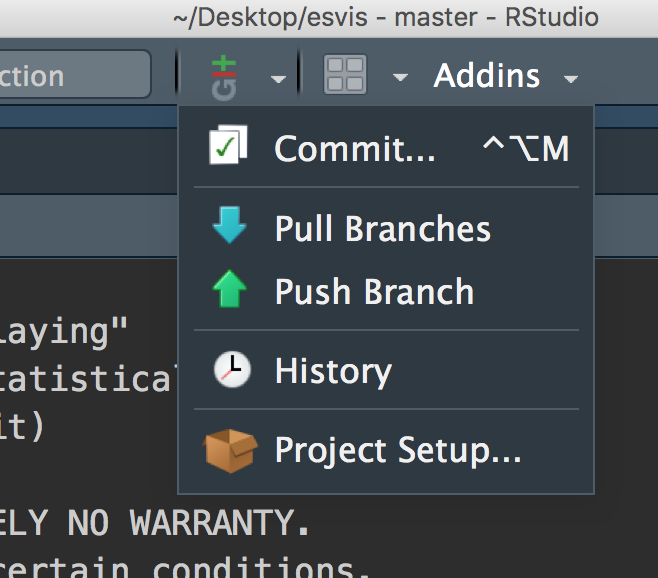 --- class: inverse-blue center bottom background-image:url(https://cdn-images-1.medium.com/max/1600/1*aFHTAkhTkyWD93-UGRttPw.png) ## Creating repositories: Starting with an existing project --- # Project first If you already have an existing project, you need to: * Initialize the repo locally * Create an empty repo on GitHub * Connect your local repo to the remote --- class: inverse-green middle center # [demo] --- # Tracking Notice the hidden `.git` folder -- On mac, show hidden files with ``` cmd + shift + . ``` (Note, I have hidden files shown all the time) -- * As long as that folder exists, the **entire** folder will be tracked. + **Do not create repos inside of repos** + If you want a folder to show up in git, there needs to be something in it (e.g., a `README.md`) --- # Ignoring Files * When we initialized the repo, we started it with a `.gitignore` file * The `.gitignore` file tells the repo not to track certain files + e.g., proprietary data -- Probably not super important for now, but if you need to ignore a file in your repo for whatever reason, just put the name of the file in the `.gitignore` --- # Adding a file * Let's create an R Markdown file and put it in our repo. * Open terminal, type `git status`. What do you see? * Use the RStudio `git` plugin. What do you see? What about with other *git* GUIs? [demo] --- # Staging * When you add files to a repo you are *staging* them for tracking. [demo] -- Command line version is `git add <file>` --- # Commits After staging, you *commit* changes to the file  --- # Push After you've committed the changes you want, push them to the remote --  Wait what's a remote again? -- The cloud-based repo --- # Refresh the repo  --- # An overall view  --- # Revisiting some vocabulary * stage * commit * push * pull * clone -- At least half the difficulty with *git* is all the weird words --- ### Simple git through command line 90% of your workflow requires just a few commands. * `git clone <path>` + Used once - gets the remote repo on your local. -- * `git pull` + Syncs your local repo with the remote -- * `git add` + Stages files in your local repo to be tracked -- * `git commit <file> -m "my commit message"` + Commits changes to files in the repo -- * `git push` + Pushes changes from your local repo to the remote -- * `git status` + Gives you an update on your local repo (what files still need to be added, what changes have been made since last commit, etc.) --- # Collaborating Need to get proper permissions. Two methods: * Add users to a repo: Settings => Collaborators => add user w/ username  --- # Collaborating Second method: * Create an organization <div > <img src = img/new-org.png height = 400> </div> --- # Cloning Means you're downloading the repo -- * Can also start a new RStudio project -- <div > <img src = img/clone.png height = 300> </div> --- # Merge conflicts * Remember to always `git pull` first * Merge conflicts only occur if you try to edit *the same line* of an out-of-date file * Let's create and resolve one with the README file. * Let's create a merge conflict! (Note the GUI from *gitkraken* is really nice for resolving them) --- # Merge conflict activity 1. Get a partner 1. Partner1 add Partner2 as a collaborator 1. Partner2 clone the repo 1. Partner1 make changes to the file in the repo, commit, and push 1. Partner2 make different changes **to the same parts** of the file. Commit the changes. Try to push. What happens? Why? 1. Open up the files - do you see some weird stuff that's been added? ### Wait for next steps --- class: inverse middle center ## Merge conflicts w/gitkraken <iframe width="560" height="315" src="https://www.youtube.com/embed/R1iWJNyRpQE" frameborder="0" allow="autoplay; encrypted-media" allowfullscreen></iframe> --- # Some takeaways Basic workflow is * Create a repo * Add collaborators * Add files * Commit changes * Push changes to remote --- # Advice on avoiding merge conflicts * Always `git pull` (or the GUI equivalent) before you start working * Try to stay in communication and don't work on the **exact** same thing at the same time * Use a GUI to help you manage what merge conflicts you do run into * Use branches --- # Branching Super powerful approach to collaborating with *git*. Essentially create a copy of the repo at a given point. * Create and *checkout* a new branch. * Make changes and commits *on the branch*, which frees you up to play and experiment without fear of "breaking" the main branch * Push the branch to the remote * When you're ready, submit a *pull request* to merge the branch with the main branch * Note - any changes on the branch *will not be visible* if you don't have that branch checked out --- class: inverse-green middle center # [demo] --- # Pull requests Submit a PR for a branch when you're ready Consider tagging others to review the changes before they are merged in Link the PR to any relevant [Issues](https://guides.github.com/features/issues/). Consider adding labels (e.g., bug fix, enhancement) --- class: inverse-green middle center # [demo] --- # Forking Similar process to branching, with a few major differences: * You don't have to be (and shouldn't be) a direct collaborator * You copy the entire repo *to your account* + You can then make whatever changes you want and push the changes to your fork * If you want your changes implemented, you *must* submit a pull request (you can't contribute to the repo directly unless you're a collaborator) and *compare across forks* --- # General advice * Create a repo * Add collaborators * Always pull before starting new work * Always commit all changes before finishing your work + If you don't do this, you might end up with automatic stashing * File Issues to track work that should be completed - Include assignments for individuals - Tag issues to help with organization --- # General advice * Use branches to create new changes + A good rule of thumb - one branch for each issue * Submit pull requests when the work on a given branch is complete, and link it to the corresponding issue - Tag collaborators to review the pull request - Use GitHub's review resources to comment on individual lines of code, as needed - Use the PR to have conversations about the changes and any revisions needed --- # General advice * Merge pull requests and delete the remote branch - Move back to your local, checkout the main branch, pull the merged changes, delete the local branch --- class: inverse-green middle center # Thanks! ### Questions? -- If we have time - let's practice creating PRs